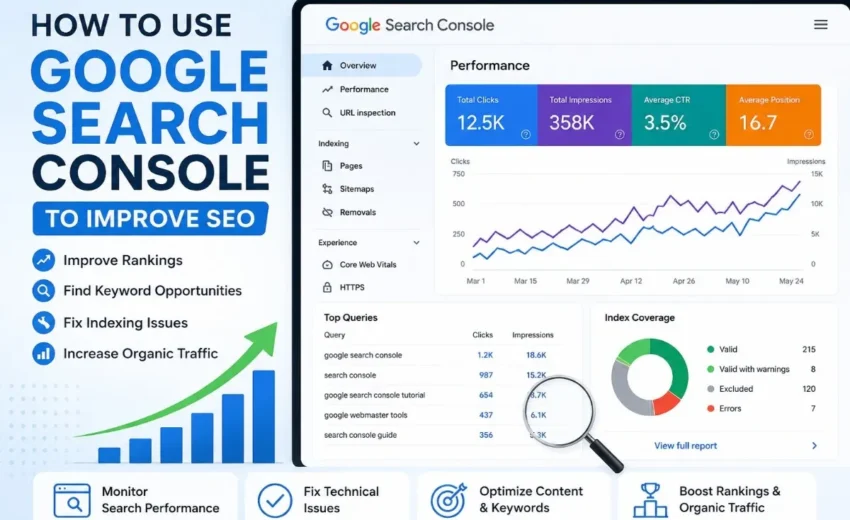
If you are trying to grow your website’s traffic but never open Google Search Console, you are missing the one tool that tells you exactly what Google thinks about your site. Many people focus on writing content, earning backlinks, or improving their site’s appearance. Those things matter. But they often ignore the free data that Google itself provides about how your site performs in search results. Google Search Console is not a magic ranking booster. It is a dashboard that shows you what is working, what is broken, and where you should focus your time. This guide will walk you through the most practical ways to use Search Console to improve your SEO. No fluff. Just useful steps.
What Is Google Search Console in Plain Words
Search Console is a free tool from Google. It helps you monitor how your website appears in Google Search.
Google Analytics tells you what people do after they click on your site. Search Console tells you what happens before that click: how often your site shows up, which search terms bring impressions, and whether Google can actually read your pages.
Think of it as a direct line to Google. You can see issues that no other tool can show you because the data comes straight from Google’s index.
Why You Should Care About Search Console
Most SEO tools estimate your keyword rankings. Search Console gives you real data.
You can see exactly:
Which search terms make your site appear in results
How many people see your site (impressions)
How many clicks does it get (clicks)
Where your site roughly ranks on average
Which pages can Google not index
Without this information, you are guessing. With it, you can make smart decisions.
Setting It Up Quickly
If you have not set up Search Console yet, do this first.
Go to the Google Search Console website. Sign in with your Google account. Add your website as a property. The domain option is best because it covers all versions of your site.
Verify ownership. The easiest way is to add a DNS record through your domain provider. If that sounds technical, you can also verify by uploading a small file to your website or adding a meta tag.
Once verified, submit your sitemap. Your sitemap is usually yourdomain.com/sitemap.xml. This helps Google find all your important pages faster.
Wait a day or two for data to appear.
Practical Ways to Use Search Console for SEO
You do not need to check everything every day. Focus on the actions that actually move the needle.
1. Find Keywords That Are Close to Ranking Well
Open the Performance report. Look at the Queries section. This shows the search terms people used before they saw your site.
Sort by position. Look for keywords where your average position is between 5 and 20. These are not on the first page yet, but they are close.
Then look at impressions. If a keyword has high impressions but low clicks, that is an opportunity. The search demand is there. You just need to improve the page.
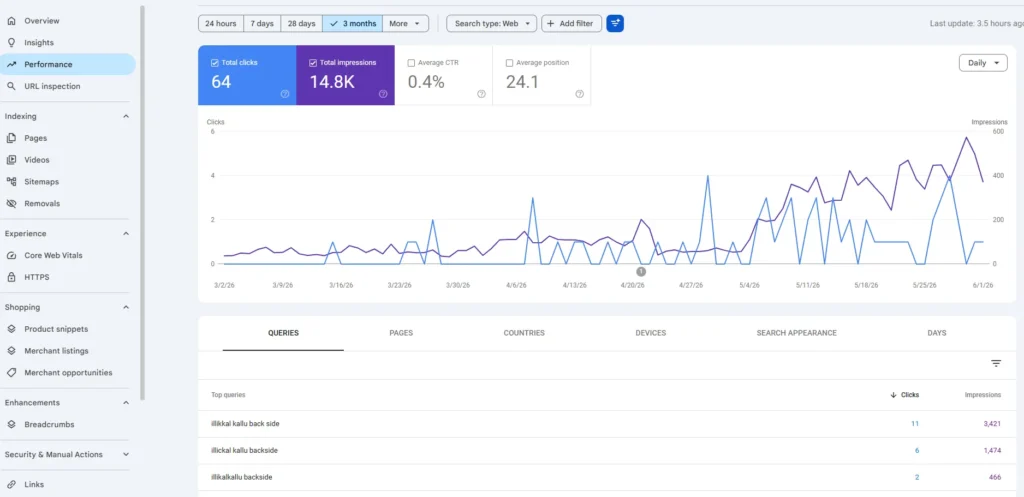
📌 The screenshot below shows the Google Search Console Performance Report, where you can review clicks, impressions, average CTR, average position, and the search queries driving visibility to your website. This data helps identify pages and keywords that may benefit from further optimization.
For example, if a page is generating plenty of impressions but very few clicks, improving the title tag, meta description, or on-page content may help increase traffic.
What to do next: Update the page with better headings, clearer answers, or more useful content. Sometimes adding a simple FAQ section or updating old statistics is enough to improve rankings and click-through rates.
2. Fix Pages That Get Impressions but No Clicks
Some pages show up in search results many times, but almost nobody clicks on them.
In the Performance report, look at the Pages tab. Find a page with deep impressions but a low click‑through rate.
A low click‑through rate usually means your title or meta description is not convincing enough. People see your result and choose someone else.
What you can change: Rewrite the title to be more specific. Add numbers if they make sense. Put the main keyword closer to the beginning. Make the meta description promise a clear benefit.
Do not overdo it. Just think: would you click on your own result?
3. Find Old Content That Is Losing Traffic
You do not always need new content. Sometimes old content loses visibility, and you can bring it back.
In the Performance report, compare the last three months to the previous three months. Look for pages where impressions or clicks have dropped.
Those pages may need fresh information. Update the date. Add a new section. Improve internal links from newer posts.
Reviving an old article is often faster than writing a new one from scratch.
4. Check If Google Can Index Your Important Pages
If Google does not index a page, it cannot rank. Period.
Go to the Pages report under Indexing. Look for issues like “Crawled – currently not indexed” or “Duplicate without canonical.”
These pages are known to Google but not added to the index. Common reasons: the page is too thin, it has a noindex tag by accident, or Google thinks it is not valuable enough.
Fix what you can. For pages you really want indexed, use the URL inspection tool and request indexing. It is not a guarantee, but it signals Google to take another look.
5. Improve Core Web Vitals Where It Matters
Google cares about page experience. Search Console shows you which pages have poor Core Web Vitals.
You do not need to fix every tiny issue. Focus on pages that get traffic. Check the Core Web Vitals report. It will flag pages with slow loading, bad responsiveness, or layout shifts.
Work with your developer or hosting provider to improve those specific pages. Faster pages keep people on your site longer, which helps your SEO.
6. Use the Links Report for Smarter Internal Linking
Search Console has a Links report. It shows which pages on your site get the most internal links.
You can use this to spread value. Find your highest‑traffic pages. Then go to those pages and add links to newer or less visible pages that you want to rank.
Internal linking is free and effective. It helps Google understand your site structure and sends authority where it is needed.
7. Spot Content Cannibalization
Sometimes two or more pages on your site compete for the same keyword. That confuses Google. If you’re not familiar with this issue, read our detailed guide on keyword cannibalization in SEO to learn how it affects rankings and how to fix it effectively.
Look in the Performance report for the same search term, bringing up different URLs from your site. That is a sign of cannibalization.
An example to make it clear:
Suppose you have two blog posts:
Page A: “SEO Checklist”
Page B: “Technical SEO Checklist”
Both pages start ranking for the search term “SEO checklist.” Their rankings fluctuate wildly. One week, Page A is in position 5, the next week Page B is in position 8, then Page A drops to position 15. Neither page stays stable.
That is cannibalization. Google cannot decide which page is most relevant.
How to fix it: Decide which page should rank for “SEO checklist” (usually the more comprehensive one). Merge the unique content from the weaker page into the stronger page. Then add a 301 redirect from the weaker page to the stronger one. Finally, improve internal linking to point to the chosen page with consistent anchor text.
After cleaning it up, the remaining page often ranks better and stays stable.
Common Mistakes to Avoid
Many people use Search Console, but still make these errors.
Ignoring the queries that already bring impressions. Those are your lowest‑hanging fruit.
Looking only at rankings instead of clicks. A high rank with no clicks is useless.
Never checking index coverage. You might have dozens of pages that Google never added.
Thinking that more data is always better. Focus on a few key metrics each week.
A Simple Weekly Routine
You do not need to live inside Search Console. A five‑minute weekly check is enough for most websites.
Open Search Console once a week and ask yourself:
Are there any new indexing errors?
Is any important page losing clicks compared to last month?
Do I see a keyword close to the first page that I can improve?
Did I submit any new pages for indexing?
That is it. Consistency matters more than deep dives.
What Search Console Cannot Do?
Be honest about the limits of this tool.
Search Console does not build backlinks for you. It does not create content. It does not compare you to competitors. It only shows Google’s view of your own site.
Also, Search Console only keeps data for 16 months. If you want long‑term trends, export your data every few months.
And remember: the average position you see is not your exact rank. It is an average across different users and devices. Use it to spot trends, not to obsess over small changes.
Final Thoughts
Google Search Console will not directly improve your rankings. No tool can do that. Only better content, better user experience, and better authority can.
But Search Console tells you where to focus. It shows you which keywords are close to ranking, which pages need a title update, and which technical issues are hurting you.
The sites that grow consistently are not the ones guessing. They are the ones using real data to make small, smart improvements over time.
If you are serious about SEO, make Search Console part of your weekly habit. Start with the five‑minute routine above. Then act on what you find.
[…] a particular word count. I first look at the search intent, the queries bringing impressions in Search Console, the questions users are asking, and whether the existing page actually answers those […]







Content Depth vs Word Count: Does Length Matter for SEO? August 27, 2026
[…] a particular word count. I first look at the search intent, the queries bringing impressions in Search Console, the questions users are asking, and whether the existing page actually answers those […]